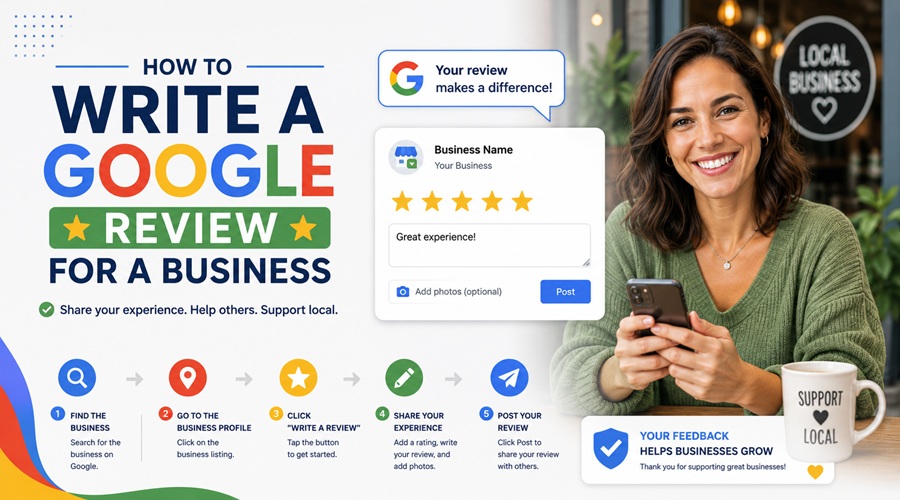
Writing a Google review takes less than two minutes once you know where to find the option. You need a Google account, and the business needs to have a verified Google Business Profile.
Here’s exactly how to do it — on both desktop and mobile.
How to Write a Google Review on Desktop
- Open Google.com and search for the business by name.
- Find the business listing on the right side of the search results (the Knowledge Panel).
- Scroll down until you see the “Reviews” section.
- Click “Write a review.”
- If you’re not already signed in, Google will prompt you to log into your Google account.
- A pop-up will appear — select your star rating (1–5 stars).
- Write your review in the text box.
- Click “Post” when you’re done.
That’s it. Your review will appear within a few minutes, sometimes instantly.
How to Write a Google Review on Mobile (Google Maps)
- Open the Google Maps app on your phone.
- Search for the business name in the search bar.
- Tap on the business from the results.
- Scroll down to the “Reviews” section on the business profile.
- Tap “Write a review.”
- Choose your star rating.
- Type your review.
- Tap “Post.”
You can also add photos directly from this screen — which many businesses genuinely appreciate and other customers find helpful.
Can’t Find the “Write a Review” Button?
A few common reasons this happens:
| Problem | Why It Happens | Fix |
| No review button visible | You’re not logged into Google | Sign in at accounts.google.com |
| Business doesn’t show a review option | The listing isn’t verified | The business may need to claim their profile |
| You’ve already reviewed them | Google shows one review per account | You can edit your existing review instead |
| Reviewing from a new account | Google may restrict very new accounts | Wait a few days and try again |
Tips for Writing a Review That’s Actually Helpful
A one-star review with no explanation or a five-star review that just says “great place!” doesn’t help anyone. Here’s how to write something useful:
Be specific. Instead of “good service,” say “the technician arrived on time, explained the issue clearly, and finished in under an hour.”
Mention what you used them for. Context matters — a restaurant reviewer mentioning it was a birthday dinner tells other readers something useful.
Talk about the experience, not just the outcome. Did the staff make you feel welcome? Was the process easy? These details matter to other customers.
Be honest, not cruel. If something went wrong, describe what happened factually. Avoid personal attacks or exaggerations — Google can remove reviews it deems abusive.
Mention staff by name if they stood out. Employees actually see these reviews, and a name mention goes a long way.
Is Your Google Review Anonymous?
No. Google reviews are tied to your Google account and display your name and profile photo publicly. You can adjust your display name in your Google account settings if you want to use a different name, but you can’t leave a fully anonymous review.
Can a Business Respond to Your Review?
Yes — and many do. Business owners can post a public reply to any review. You’ll get a notification if they respond. It’s worth checking back, especially if you left a negative review — sometimes businesses offer to make things right.
Leaving a review takes two minutes of your time and can genuinely help the next person making a decision. For small businesses especially, reviews are one of the main ways new customers find and trust them.